

















































Beginner’s Guide to MT4 Trading: Full Tutorial for 2025

Table of Contents
- Introduction
- What Is MetaTrader 4?
- Why MT4 Matters for Traders and Investors
- Core Concepts
- Step-by-Step Guide
- Practical Tips for Better Results
- Common Mistakes to Avoid
- Frequently Asked Questions
- Conclusion
Introduction
The first time you log into MetaTrader 4, the experience can feel overwhelming. Rows of price data scroll endlessly. Menus hide behind right-clicks. Your cursor hovers over the “New Order” button, and you wonder if a single click will wipe out your account or start your trading journey.
This reaction is remarkably common. Despite launching in 2005, MT4 remains the dominant platform for retail traders worldwide. The reason is straightforward: it works. The platform delivers professional-grade charting, one-click trade execution, support for automated strategies, and zero platform fees at most brokers.
What follows is a comprehensive walkthrough of the MetaTrader 4 interface. You’ll discover what each window does, how to interpret candlestick charts, the distinction between order types, and exactly how to place your first trade without self-destructing. The goal is simple: transform you from a confused beginner into someone who operates the platform like a veteran.
What Is MetaTrader 4?
MetaTrader 4, universally known as MT4, is an electronic trading platform built by MetaQuotes Software. It connects traders to financial markets—primarily forex, though CFDs on commodities, indices, equities, and cryptocurrencies are also available—through a client-server architecture.
Three components make the system function. The terminal is what appears on your monitor: charts, order entry boxes, and account management interfaces. The server sits at your broker’s end, handling order routing, streaming price quotes, and maintaining your account balance in real-time. The client application runs on your computer or phone, receiving live prices and sending trade instructions back to the server.
The platform’s real strength lies in flexibility. Manual traders get sophisticated charting with dozens of built-in indicators. Automation enthusiasts can write or purchase Expert Advisors—scripts written in MQL4 that execute trades automatically. Multi-timeframe analysis, custom indicator support, and granular order management come standard. These features took years to refine, and competitors still struggle to match MT4’s balance of power and accessibility.
Consider a typical scenario: you’re trading EUR/USD and decide to go long. Within the platform, you open the chart, select your position size, place a stop loss below a recent support level, and click “buy.” The entire sequence takes seconds once you understand the interface.
Why MT4 Matters for Traders and Investors
The question of relevance is fair. It’s 2025, and newer platforms like cTrader and TradingView have carved out meaningful market share. So why does MT4 still dominate?
Three practical reasons explain its persistence. First, consistency matters. If you switch brokers, your charts, indicators, and order placement workflow remain identical. There’s no learning curve with a new platform—just connect to a different server and continue trading. Second, the ecosystem is massive. Thousands of free and commercial indicators, scripts, and Expert Advisors exist in the MetaTrader Market and across trading forums. Sophisticated tools that would cost thousands to build elsewhere are often available for free. Third, mobile functionality is complete. The iOS and Android apps mirror the desktop experience nearly perfectly—you can analyze, manage, and execute trades from anywhere.
The practical implication is clear: ignoring MT4 limits your broker options significantly. Proprietary trading firms, institutional brokers, and the majority of retail forex and CFD providers still anchor their offerings around this platform. Learning MT4 opens more doors than it closes.
The Terminal Interface: Navigator, Market Watch, and Terminal Windows
Four areas demand your attention from the start. The Navigator window sits on the left side of your screen. It displays account credentials, available technical indicators, and Expert Advisors. Each category expands with a click on the plus sign, revealing the tools and files you can use.
The Market Watch window shows live bid and ask prices for every instrument your broker supports. Right-click anywhere in this window and select “Specification” to reveal contract size, minimum lot requirements, and trading hours for each pair. Single-clicking any instrument instantly opens its chart—a feature you’ll use constantly.
The chart window occupies the center and right of your screen. This is your analytical workspace: draw trend lines, apply indicators, and study price action. Multiple charts can remain open simultaneously, each displaying a different instrument or timeframe.
The Terminal window lives at the bottom and contains several critical tabs. The Trade tab displays open positions and pending orders with real-time profit and loss calculations. The History tab archives closed trades for review. The Accounts tab reveals your balance, equity, margin, and free margin at a glance. The Experts, Journal, and Alerts tabs serve debugging functions for automated strategies.
Mastering these four areas before placing a single trade eliminates the confusion that derails most beginners.
Candlestick Charts and Timeframes
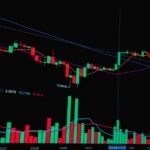
MT4 defaults to candlestick charts, the most popular visualization among active traders. Each candle represents one time period. The body shows where price opened and closed. The wicks—sometimes called shadows—display the highest and lowest prices reached during that period. A green or hollow candle indicates the close exceeded the open (price rose). A red or filled candle shows the close fell below the open (price fell).
Timeframes define what each candle represents. MT4 offers options from one minute (M1) to one month (MN). Your trading strategy should dictate your timeframe selection. Scalpers typically work with M1 or M5 charts for rapid entries and exits. Day traders favor M15 or H1 (one-hour) charts. Swing traders analyzing multi-day trends rely on H4 and Daily (D1) timeframes.
Here’s how this plays out in practice. A trader watching the hourly chart on GBP/USD spots a large bullish candle breaking above a two-week falling trendline. Switching to the 15-minute chart reveals the same breakout as several smaller candles, offering more precise entry timing. Both timeframes tell a story—your trading style determines which resolution serves you better.
Order Execution Types: Market, Pending, Stop Loss, and Take Profit
MT4 offers several order types beyond simple market execution. The distinction matters enormously. Using the wrong execution type can mean the difference between entering at your intended level and receiving a significantly worse fill.
Market execution (instant order) fills your trade immediately at the displayed price. You receive the entry price shown but accept whatever spread exists at that moment. This is the most common choice for beginners and suits most scenarios.
Pending orders let you specify a price at which you want to enter—without entering immediately. A buy limit order executes only when price falls to your specified level or lower. A buy stop order executes only when price rises to your specified level or higher. Sell limits and sell stops work in the opposite direction. Waiting for price to come to you often produces superior entries compared to chasing the market.
Stop loss and take profit levels are price triggers that close positions automatically. A stop loss caps your loss if price moves against you. A take profit locks in gains when price reaches your target. These are your safety net. Every position should have both.
Here’s a practical application: EUR/USD trades at 1.1000, and you want to go long but anticipate a brief pullback first. You place a buy limit at 1.0950 with a stop loss at 1.0900 (20 pips risk) and take profit at 1.1030 (80 pips reward). This creates a 1:4 risk-reward ratio without requiring constant screen time.
Technical Indicators: Moving Averages, RSI, and MACD
MT4 ships with dozens of built-in indicators. Three appear in more trading strategies than any others. Understanding what each measures helps you select tools aligned with your approach.
Moving averages convert scattered price data into a single flowing line. The simple moving average (SMA) computes the arithmetic mean of closing prices over your selected period. The exponential moving average (EMA) weights recent prices more heavily, responding faster to price changes. Traders frequently use 50-period and 200-period moving averages to identify long-term trends. Price above the 200 SMA indicates bullish bias; price below suggests bearish conditions.
The Relative Strength Index (RSI) gauges the magnitude of price changes over 14 periods, outputting a value from 0 to 100. Readings above 70 signal overbought conditions and potential reversals. Readings below 30 indicate oversold conditions. RSI performs best in ranging markets where price oscillates between defined support and resistance levels.
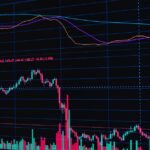
The Moving Average Convergence Divergence (MACD) compares two exponential moving averages to identify momentum shifts. When the faster EMA crosses above the slower EMA, bullish momentum emerges. When it crosses below, bearish momentum dominates. The histogram—vertical bars beneath the main lines—displays the distance between the two averages, visually representing momentum building or fading.
A concrete example: a trader analyzing gold on the hourly chart notices the MACD line crossing above the signal line while RSI climbs from 35 toward 50. This combination of momentum indicators from two different measurements provides confirmation before entering a long position.
Expert Advisors and Automated Trading
MT4 supports automated trading through programs called Expert Advisors (EAs). These are scripts written in MQL4 that can analyze market conditions, manage positions, and execute trades without human input.
You don’t need programming skills to benefit. Thousands of free and commercial EAs populate the MetaTrader Market and trading forums. Most brokers allow EA testing on demo accounts before risking real capital.
However, automated trading carries significant risks. A poorly coded EA can deplete your account rapidly. Even well-designed EAs struggle when market conditions shift—volatility spikes, liquidity gaps, and unexpected news events often produce results dramatically different from backtesting. Monitor automated strategies consistently and understand their logic.
For most beginners, the better path is manual trading first. Develop a profitable strategy, master execution mechanics, and then consider automation as a tool for consistency—not a replacement for market knowledge.
Step 1: Download and Install MT4
Your broker provides a download link after account approval. Resist the temptation to download from third-party websites. The official version comes through your broker’s client portal, ensuring you connect to their specific server rather than an imposter site.
Run the installer and follow the prompts. You’ll enter your live account credentials or create a demo account during setup. Demo accounts provide simulated money with real market prices—essential preparation before risking capital.
After installation, arrange your workspace deliberately. Position Market Watch on the left, primary charts in the center, and Terminal at the bottom. Save this layout. You’ll restore it frequently.
Step 2: Navigate the Platform and Open Your First Chart
Locate your broker’s server in the Navigator window under “Accounts” and double-click to connect. The status bar at the bottom turns green when connection succeeds.
Open a chart by double-clicking any instrument in Market Watch. Right-click within the chart and select “Properties” to customize colors, background, or grid lines. Access “Timeframes” from the same menu to switch between one-minute and monthly views.
Open several charts simultaneously. Organize them to compare instruments or monitor multiple timeframes. Most traders keep four to six charts accessible at once.
Step 3: Place Your First Trade with Proper Risk Management
Right-click within your chart and select “Trade,” then “New Order,” or simply press F9. The order window appears, displaying instrument, lot size, stop loss, take profit, and execution type.
Here’s a complete walkthrough. Assume EUR/USD trades at 1.1000 and you want to buy with a 20-pip stop loss and 40-pip take profit (a 1:2 risk-reward ratio). In the order window, select market execution. Set volume to 0.01 lots (1,000 units of base currency). Set stop loss at 1.0980 and take profit at 1.1040. Click “Buy.”
Your order fills near 1.1000. The Trade tab in Terminal shows your open position with floating profit and loss updating in real-time. If price drops to 1.0980, the stop loss executes automatically—approximately $20 loss per lot traded. If price rises to 1.1040, the take profit triggers—approximately $40 gain per lot.
Never trade without a stop loss. It is your only protection against catastrophic loss when you’re not watching the screen.
Step 4: Practice on a Demo Account Before Going Live
Dedicate at least two weeks to demo trading before funding a live account. The objective extends beyond placing trades. You’re developing a repeatable workflow: open charts, apply indicators, place orders, set stops and targets, manage positions, and close trades using the keyboard shortcuts and mouse actions you’ll employ live.
Maintain a trading journal in a spreadsheet. Record which trades succeeded, which failed, and your reasoning for each entry. Consistent profitability on demo with a defined strategy must precede any consideration of live trading.
Practical Tips for Better Results
Check the spread before entering trades during major market hours. Spreads widen significantly during off-hours and around news events, raising your breakeven threshold.
Use the crosshair tool—hold the middle mouse button or press F9 then move—to measure pip distance between any two points on your chart. Accurate measurement helps set precise stop loss and take profit levels.
Save chart templates once you discover an indicator configuration that works. Loading a saved template beats reapplying six indicators every time you open a new chart.
Keep your platform updated. MetaQuotes releases patches addressing bugs and occasionally modifying behavior. Current versions prevent unexpected surprises.
Employ trailing stops to lock in profits as price moves favorably. A 15-pip trailing stop on a long AUD/USD position means your stop loss automatically moves to breakeven once price rises 15 pips above entry.
Review margin requirements before trading. The Terminal window displays free margin—never open positions so large that a modest adverse move triggers a margin call.
Common Mistakes to Avoid
Trading without a stop loss exposes your account to unlimited loss. Price gaps can sweep past your intended exit level, costing far more than planned.
Over-leveraging destroys accounts fastest. Even with correct directional bias, a 2% move against you triggers a margin call with excessive leverage.
Trading based on hope rather than analysis leads to holding losing positions indefinitely. When your stop loss hits, accept the loss and move to the next setup.
Ignoring spread impact on breakeven hurts scalpers especially. A 3-pip spread on a 5-pip scalp target means you need 60% accuracy just to break even.
Setting stops too tight catches them in market noise. A 10-pip stop on a currency pair that normally moves 30 pips hourly likely gets triggered before your thesis develops.
Neglecting to test during different market sessions causes unpleasant surprises. An EA or strategy performing well during London hours may fail during Asian trading.
How do I download and install MT4?
Visit your broker’s website and navigate to their trading platforms section. Most brokers provide direct download links for MT4. Run the installer and follow the prompts. You’ll need your account number and password—demo or live—when first launching the platform.
What is MetaTrader 4 and what can I trade on it?
MetaTrader 4 is an electronic trading platform used by millions of retail traders globally. Through MT4, you can trade forex pairs, CFDs on commodities like gold and crude oil, stock indices, individual company shares, and cryptocurrencies—depending on your broker’s offerings.
How do I place a trade on MT4?
Open the chart for your desired instrument, right-click and select “New Order” or press F9. Choose your lot size, set stop loss and take profit levels if desired, and click “Buy” for a long position or “Sell” for a short position. Your broker executes the trade immediately at the current market price.
Is MT4 free to use for trading?
MT4 is free for traders. Brokers provide the platform at no additional cost because they earn through spreads and commissions on your trades. You only pay the trading costs your broker charges.
Can I use MT4 on my smartphone?
Yes. MT4 has fully functional mobile applications for both iOS and Android. You can analyze charts, apply indicators, manage positions, and execute trades from your phone. The mobile version syncs smoothly with your desktop account.
How do I set stop loss and take profit on MT4?
When placing an order, enter your desired price levels in the “Stop Loss” and “Take Profit” fields. You can also add or modify these levels on existing positions by right-clicking the position in the Terminal window and selecting “Modify or Delete Order.”
Conclusion
MetaTrader 4 rewards patience. The platform has a learning curve, but every feature exists for a reason—to help you analyze opportunities, manage risk, and execute trades efficiently. The traders who succeed with MT4 treat it as a tool for implementing a well-thought-out strategy, not as a magic wand that generates profits independently.
Begin with a demo account. Spend time arranging your workspace, applying indicators, and placing trades until the process feels automatic. Only when you can open a chart, identify a setup, and execute with confidence should you consider funding a live account.
Trading involves substantial risk. No tutorial or platform guarantees profits. Protect your capital by using stop losses on every position, sizing your trades appropriately, and never risking money you cannot afford to lose.
—
This article is for educational purposes only and does not constitute investment advice. Trading and investing carry risk of loss; never invest more than you can afford to lose.
Last reviewed: August 2026